
M4. Copilot Studio에서의 Copilot Chat Harness
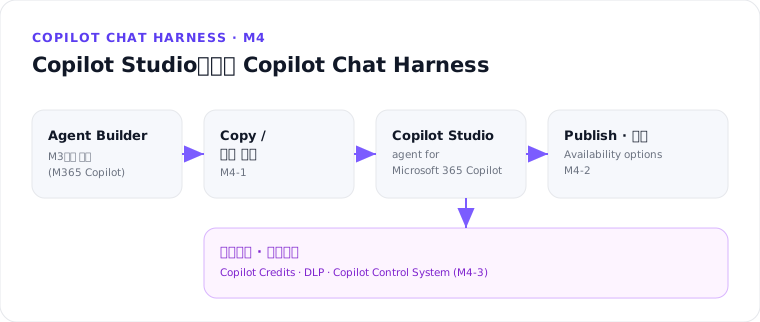
한 줄 요약 — Agent Builder의 한도를 넘어서면 Copy to Copilot Studio로 넘어가거나 Copilot Studio에서 직접 agent for Microsoft 365 Copilot을 만듭니다. 이후에는 게시 → 관리 센터 승인 → 라이선스·거버넌스의 조직 운영 사이클을 따릅니다.
하위 세션
| # | 세션 | 핵심 |
|---|---|---|
| 1 | Copy to Copilot Studio · Copilot Studio에서 만들기 | 복사되는 항목·안 되는 항목 · 스냅샷 · agent for Microsoft 365 Copilot 생성 |
| 2 | 게시 · 가용성 · 관리 센터 승인 | Publish · 가용성 4옵션 · 관리 센터 Requests · 역할 |
| 3 | 라이선스 · 거버넌스 | Copilot Credits · 제로 레이팅 · DLP · Copilot Control System |
1. Copy to Copilot Studio · Copilot Studio에서 만들기
Agent Builder에서 만든 에이전트를 More options (…) → Copy to Copilot Studio로 옮기면 버전 관리·분석·거버넌스 같은 고급 기능을 쓸 수 있습니다. 이름·설명·지침·SharePoint/웹사이트 지식은 복사되지만 Copilot connectors· Teams/이메일 지식·Code interpreter·Image generator는 그대로 옮겨지지 않습니다. Copilot Studio에서 처음부터 Microsoft 365 Copilot용 agent를 만드는 절차도 함께 다룹니다.
👉 상세 — Copy to Copilot Studio · Copilot Studio에서 만들기
2. 게시 · 가용성 · 관리 센터 승인
Copilot Studio 개요 페이지의 Publish로 게시하면 Entra ID에 봇 리소스가 생성됩니다. 이어지는 Availability options에서 Share Link부터 조직 전체 공개까지 4가지 배포 범위를 고르고, 조직 전체 공개는 Microsoft 365 admin center의 Agents → All agents → Requests에서 관리자가 승인해야 반영됩니다.
3. 라이선스 · 거버넌스
2025년 9월 1일부로 통화 이름이 Copilot Credits로 바뀌었고, Microsoft 365 Copilot 라이선스 사용자가 Copilot Chat·Teams·SharePoint에서 쓰는 상당수 시나리오는 Copilot Studio 미터에 잡히지 않습니다(제로 레이팅). 2025년 초부터 DLP(데이터 정책)가 모든 테넌트에 강제 적용되며, Copilot Control System의 3대 축으로 전사 거버넌스를 관리합니다.
핵심 정리
- Copy to Copilot Studio는 스냅샷 — 원본과 동기화되지 않으며, 복사 후엔 각자 독립적으로 관리합니다
- 조직 전체 공개(Show to everyone in my org)는 반드시 관리 센터 승인을 거쳐야 배포됩니다
- Microsoft 365 Copilot 라이선스 사용자의 상당수 사용은 Copilot Credits에 잡히지 않음 — 단 DLP는 예외 없이 전 테넌트 강제
이전 ← M3. Copilot Chat Harness 제작 — Agent Builder · 다음 → M5. 업무용 에이전트 설계·제작
출처: Extend Microsoft 365 Copilot with the Copilot chat harness (MS Learn) · Copy an agent to Copilot Studio (MS Learn) · Manage agent requests in Microsoft 365 admin center (MS Learn) · Licensing for agents powered by the standard harness (MS Learn) · Copilot Control System overview (MS Learn)